How to Check for Plagiarism in PDFs, Docs, and Websites
How to Check for Plagiarism in PDFs, Docs, and Websites
You’ve just received the document. It could be a final essay from a student, a draft article from a freelance writer you just hired, or even your own research paper that you’re about to submit after weeks of hard work. You open it up, start reading, and then… you feel it. That little nagging voice in the back of your head. A sentence seems a bit too polished, a paragraph sounds vaguely familiar. You get a sinking feeling and ask yourself: "Is this original?"
That question is the first step toward upholding academic and professional integrity. But the next step can be tricky. How do you actually check it? The process can seem daunting, especially when you’re dealing with different file formats. A locked PDF feels different from a simple Word Doc, and checking an entire website seems like a monumental task.
But here’s the good news. It’s not as complicated as it seems. With a few simple techniques and one powerful tool you can learn how to confidently check any piece of content for plagiarism, no matter what format it comes in.
The Universal Detective Trick: The "Snippet Search"
Before we dive into the specifics of each file type, let’s talk about the foundational technique for any manual plagiarism check. I call it the "snippet search." It’s simple, it’s free, and it’s surprisingly effective for a quick spot-check. Here’s how it works: you find a sentence or a short, unique-sounding phrase in the document you’re checking. You copy that snippet of text.
Then, you go to a search engine like Google, paste the snippet into the search bar, and this is the crucial part put it in quotation marks. The quotation marks tell the search engine to look for that exact phrase, in that exact order. If you get a hit that shows the same sentence on another website, in a published paper, or in a book, you’ve just found a potential instance of plagiarism. This simple trick is your go-to manual method, and it’s the basis for everything we’ll do next.
Let's Start Easy: Checking Word Docs and Google Docs
Let’s begin with the most common and straightforward formats: Microsoft Word documents (.doc or .docx) and Google Docs. The great thing about these formats is that the text is readily available. It’s not locked away or trapped in an image. You can easily select, copy, and paste any part of the document.
So, the process here is a direct application of our snippet search. Open the document and start reading. If a particular section raises your suspicions, highlight a sentence that’s about 10-15 words long. Shorter phrases might bring up too many coincidental matches, and longer ones might be too specific. Copy it, pop it into Google with quotation marks, and see what comes back. You can repeat this process for a few different paragraphs throughout the document to get a general sense of its originality.
The Limits of Spot-Checking Your Documents
Now, this manual spot-checking method is definitely better than nothing. It can often catch the most blatant, lazy instances of copy-paste plagiarism. But let’s be honest about its limitations. First, it is incredibly time-consuming. To check a 10-page paper thoroughly, you could spend hours just copying and pasting different snippets. Who has time for that?
Second, it's a spot-check, not a comprehensive audit. You might check five sentences and find nothing, while the sixth sentence, which you didn't check, was lifted directly from a source. It’s a bit like a game of whack-a-mole; you might hit one, but you’ll probably miss others. It’s also not very effective at detecting more sophisticated plagiarism, like patchwriting, where the sentence structure is the same but the words have been changed.
Unlocking the Text in a PDF
Now, let’s move on to a trickier format: the PDF. PDFs are the go-to format for academic articles, official reports, and often, student submissions. The challenge with PDFs is that they can come in two flavors. The first is a text-based (or "true") PDF, where the text is real, selectable text. In this case, you can use the same snippet search method we used for Word Docs. You just highlight a sentence, copy it, and search for it. It might be a little clunkier than in a Word doc, but it works.
The second, more difficult type is an image-based PDF. This is essentially a scan or a photograph of a document. If you try to highlight the text, you can’t, because your computer just sees one big image. So, how do you check a document when you can’t even copy the words?
Dealing with Image-Based or "Locked" PDFs
When you're faced with an image-based PDF, you need a special tool to unlock the text. This technology is called OCR, which stands for Optical Character Recognition. An OCR tool scans the image of the document and uses artificial intelligence to recognize the letters and words, converting the image into selectable, machine-readable text.
Many modern PDF readers (like Adobe Acrobat Pro) have this feature built-in, and there are also plenty of free OCR websites available online. You simply upload your image-based PDF, and the tool will process it and give you back a version with text that you can actually copy and paste. Once you've used OCR to extract the text, you can then go back to our trusty snippet search method to spot-check for plagiarism. It’s an extra step, but it’s the only way to manually check a scanned document.
Checking Content on a Live Website
What if the content you want to check isn't in a file, but is live on a website? This scenario comes up in a few key situations. First, you might want to check if other people are plagiarizing your website’s content. To do this, you can periodically take unique sentences from your own blog posts or service pages, run them through a snippet search, and see if any other sites pop up with your content.
The second situation is when you've hired a writer and they've just published a new post to your company blog. Before that page gets indexed by Google and potentially flagged for duplicate content, you'll want to verify its originality. You can simply go to the live page, copy a few key sentences, and run your snippet searches to make sure the work is clean.
The Glaring Problem with Manual Methods
As you can probably see by now, while manual checking is possible for all these formats, it’s far from ideal. The problem is always the same: it’s slow, it's tedious, and it’s incomplete. Manually checking a single 5,000-word article could take you all afternoon, and you still wouldn't have 100% confidence that you checked every important sentence. For an entire website with dozens or hundreds of pages, a manual audit is simply out of the question.
These methods are like using a flashlight to search a dark warehouse. You might find something in the small circle of light you’re pointing, but you have no idea what’s lurking in the rest of the building. You need a way to flip on the floodlights and see everything at once.
The Smarter Way: A Universal Plagiarism Checker
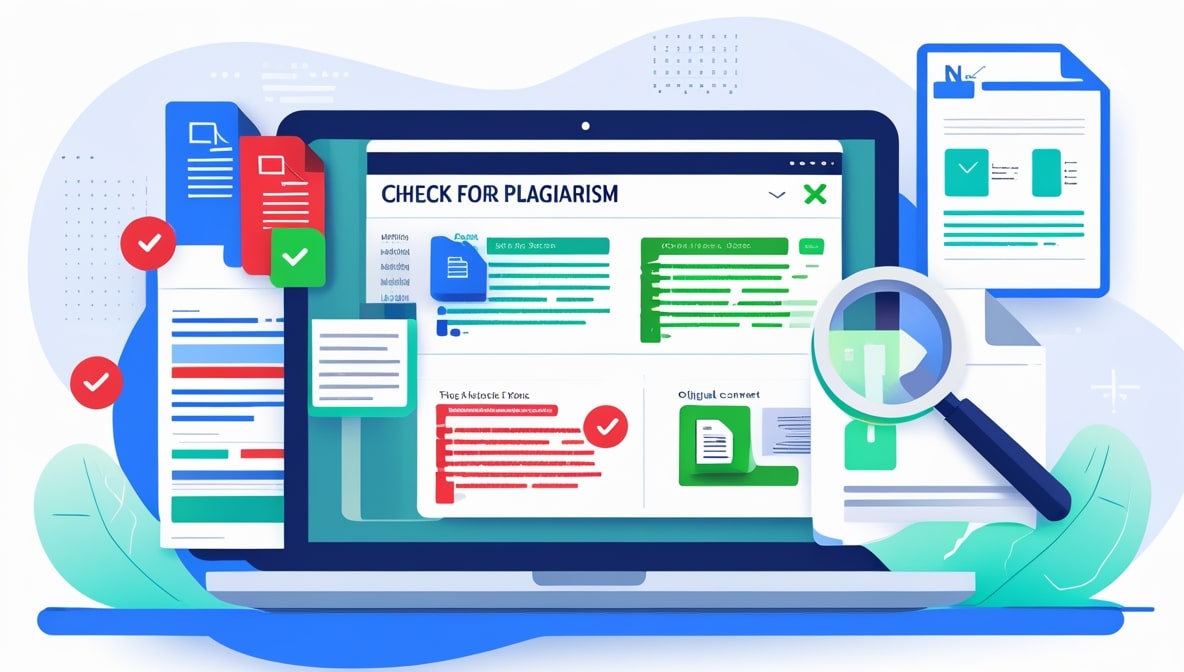
This is where an automated, dedicated plagiarism checker comes in. A high-quality plagiarism checker is the "flip the floodlights on" solution. It completely bypasses all the clunky issues with different file formats because it’s designed to do one thing brilliantly: analyze text. It doesn't care if that text came from a Word Doc, a PDF, or a website. As long as you can get the text into the tool, it can give you a comprehensive and near-instantaneous analysis.
Instead of spending hours playing detective with dozens of browser tabs open, you can get a full report in a matter of seconds. It’s the difference between bailing out a boat with a teacup and using a high-powered pump. Both might eventually get some water out, but one is clearly the smarter, more effective choice.
How Our Tool Simplifies Everything
We designed the tool here at plagiarism-checker.free specifically to solve this problem. We wanted to create a simple, powerful interface that allows you to check any piece of content without having to worry about the format. Our checker is built around a simple text box, making it universally compatible.
For Word Docs and Google Docs, the process is a dream. Instead of checking tiny snippets, you just select the entire text of your document (Ctrl+A or Cmd+A), copy it, and paste it into the check box. That’s it. In seconds, you get a full originality report.
For PDFs, it’s just as easy. If it's a text-based PDF, you again just copy the text and paste it into our tool. If it’s an image-based PDF, you would first use an OCR tool to extract the text, and then you can paste that entire block of text into our checker for a complete analysis.
The Real Difference: Speed, Depth, and Peace of Mind
The benefits of using an automated tool go far beyond just saving time. The depth of the check is simply on another level. While a manual snippet search only compares your text against what Google’s search index chooses to show you, a powerful plagiarism checker cross-references your text against a massive, dedicated database of billions of websites, academic journals, publications, and books. It sees sources that a simple Google search would never find.
Furthermore, a sophisticated tool can detect forms of plagiarism that are nearly impossible to find manually. Its algorithms are designed to spot sentences that have been slightly reworded or restructured, providing a much deeper and more accurate analysis. This is what gives you true peace of mind.
Your Go-To Tool for Every Format
In today's fast-paced world, being able to quickly and confidently verify the originality of a document is an essential skill. While knowing the manual tricks is useful for a quick gut check, relying on them for serious work is inefficient and risky. A powerful, accessible plagiarism checker is the modern standard. It democratizes the process, giving everyone from teachers and editors to students and website owners the ability to uphold integrity with confidence, no matter if they're looking at a PDF, a Doc, or a webpage.